How to download all images from a web page
Save every image on a page in a few clicks, at full resolution, as separate files or one ZIP, with filters to skip icons and tracking pixels.
Right-clicking images one by one is slow, and it misses most of them: lazy-loaded photos, CSS backgrounds and images inside slideshows never show a "Save image" option. Image Scraper Pro scans the whole page at once and lets you save exactly the images you want.
Before you start
Install Image Scraper Pro from your browser's store: Chrome, Firefox or Edge. It's free, needs no account and runs entirely in your browser.
Step 1: Scan the page
- Open the page with the images you want.
- Click the Image Scraper Pro icon in the toolbar (or press
Alt+Shift+I). The popup shows how many images it found and the largest ones. - Click Open scraper to open the full dashboard for that page (or press
Alt+Shift+Ofrom the page).
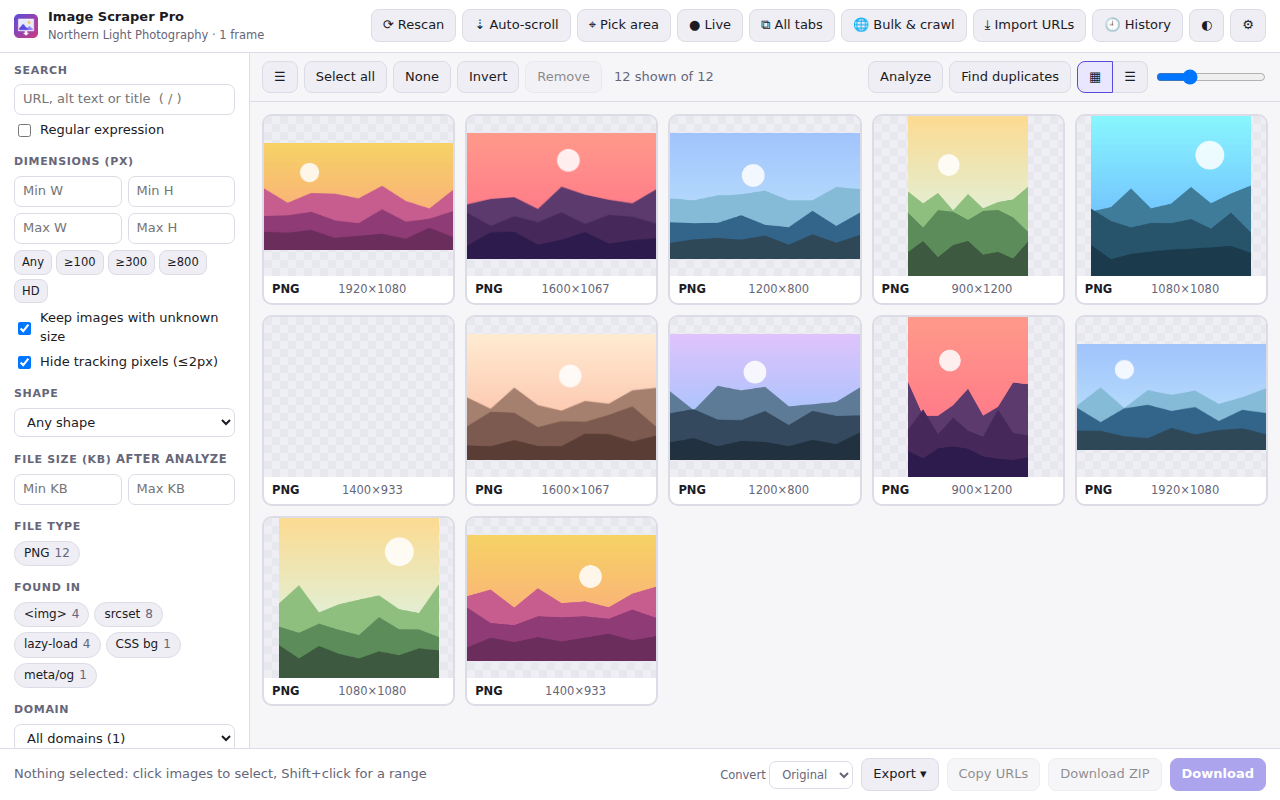
Step 2: Keep only the images you want
The sidebar filters update the counts live:
- Dimensions: use the presets (≥100, ≥300, ≥800, HD) to drop icons and thumbnails, or type a minimum width and height.
- File type: keep only JPG, PNG, WebP, SVG, GIF or AVIF.
- Found in: keep only real
<img>photos, or only CSS backgrounds, SVGs and so on. - Domain: keep images from one CDN or website.
- Search: match words in the image address, alt text or title.
Tracking pixels (images of 2×2 pixels or less) and common ad and analytics images are hidden automatically.
Step 3: Select and download
- Click Select all, or click images to pick them (Shift+click selects a range).
- Click Download to save them as separate files, or Download ZIP to get one archive.
Files go to your normal Downloads folder. To control file and folder names, set a template in the options, such as {domain}/{index:3}-{name}. See Download images as a ZIP with your own file names.
Quick download in one click
If you always want the same kind of images, set your default filters in the options, then use Quick download all in the popup (or Alt+Shift+D). It downloads every image that passes your filters without opening the dashboard.
Troubleshooting
- Fewer images than expected? Use Auto-scroll + scan, and check that the filters aren't hiding them (click Reset filters). Images added later can be caught with ● Live mode.
- Images from a gallery behind a login? Requests use your normal browser session, so pages you can see while signed in can be scraped.
- An image shows as broken? Some sites block images requested from elsewhere. Turn on Send the page as Referer in the options. See the Help Center for more fixes.