How to download all images from a website
Crawl a whole site for images with Image Scraper Pro. Follow links, pagination and sitemap.xml, respect robots.txt, and save everything as a ZIP.
Scraping one page is easy. A whole website (every gallery page, blog post and product) needs a crawler. Image Scraper Pro includes one that runs in your browser: it follows links, "Next" buttons and sitemaps, collects the images from every page, and sends them to the dashboard for filtering and download.
Open the bulk scraper and crawler
Click the toolbar icon, then 🌐 Bulk scrape & crawl website. You can also right-click a page and choose *Crawl this website for images…*
The first time, the extension asks for access to all sites. Crawling fetches pages and images from the site, and Chrome only allows that once you agree. You can remove the access later in the options.
Step 1: Add the start address
Paste the website address, for example https://example.com/gallery/. You can paste several start addresses, one per line, or load a .txt, .csv, .html or .json file with thousands of URLs.
Step 2: Choose how far to crawl
- Link depth: how many clicks away from the start page to follow. Depth 1 scrapes the start page and the pages it links to.
- Scope: Same website (host), Same domain + subdomains, or Any website (follow external links).
- Include and exclude patterns: wildcards such as
*/products/*or/regex/patterns to control which links are followed. - Page limit: stop after a number of pages, or use 0 for no limit.
Pagination links (rel="next", "Next", "›", "»" and their translations) and sitemap.xml, including image sitemaps, are followed automatically.
Step 3: Choose fast or full-render mode
- Fast: read the HTML (no JavaScript): reads each page's HTML directly and handles hundreds of pages per minute. Best for blogs, shops and classic galleries.
- Full render: open in a background tab: loads each page like a visitor would, so galleries built by JavaScript appear too. Slower, but it finds the most.
Adjust concurrency, the delay between requests and the page timeout to stay gentle on the site.
Step 4: Start, pause and review
Click Start scraping. The live log shows each page, the number of images found and the crawl rate. You can Pause and resume, or Stop at any time.
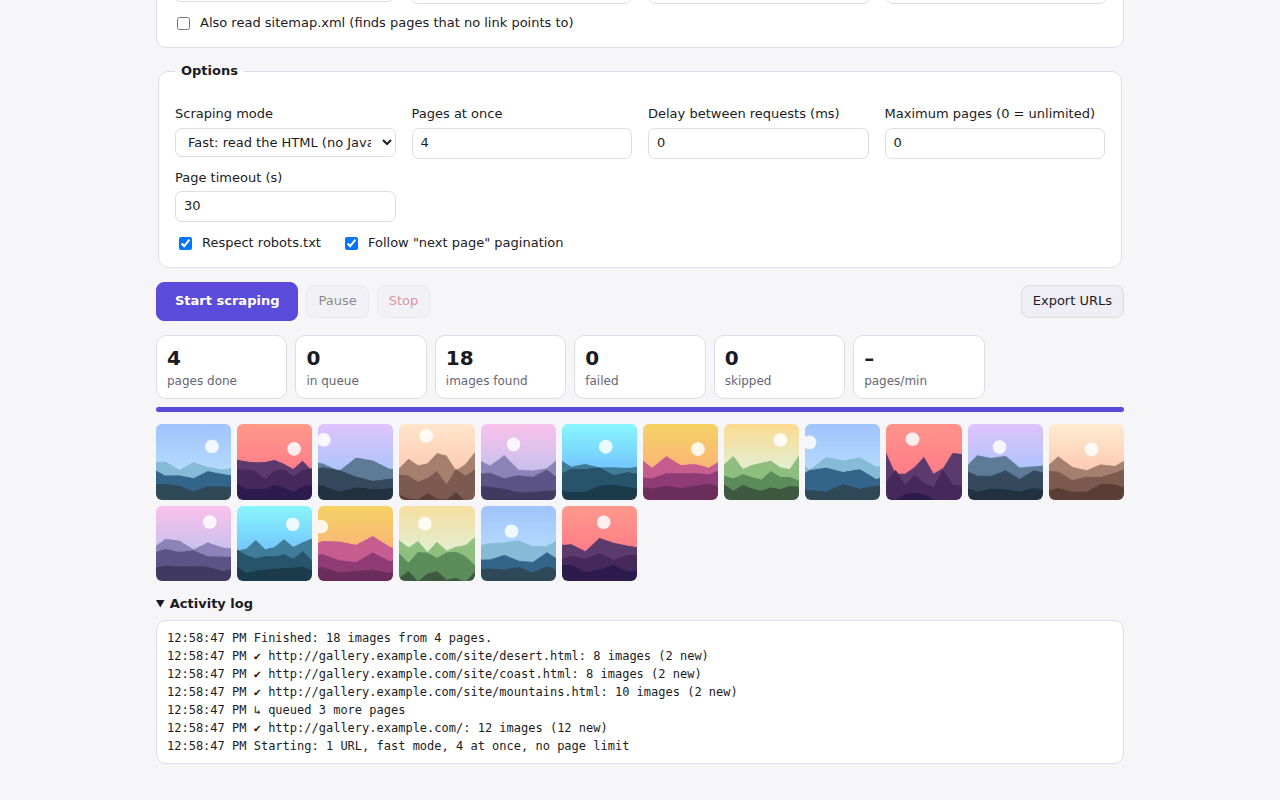
Step 5: Download the results
Click Open results in dashboard to filter, preview and download every image as files or a ZIP, just like a single page. Export URLs saves the image addresses as a list instead.
Large crawls are fine: ZIP files are split into parts automatically, and Skip previously downloaded images avoids saving the same image twice across runs.
Crawl responsibly
Image Scraper Pro respects robots.txt by default, including Crawl-delay. Turn this off only for your own sites. Use a delay between requests, and respect each website's terms and the copyright of the images you download.